-
-
![]()
1. Introduction
-
![]()
2. Course Curriculum
-
![]()
3. Certificate
-
- Course Details
- Course Curriculum
- Sample Certificate
- Review
- Education
- online course
- Certificate
- Microsoft OneNote Online Course
Course Curriculums
Course Description
Through this comprehensive training on Microsoft One Note 2013 you will learn to leverage great features such as the facility to link notes automatically, modify the interface, and quickly track down unread notes. Irrespective of the fact that you are completely new to one note or upgrading from an older version, this course will provide you with the knowledge and skills necessary to be a proficient one note user. We have integrated classroom training experience and teaching practices to develop an easy-to-use course that you can modify to meet your personal learning needs.
What are the requirements for the Microsoft OneNote 2013 Training?
- A PC with Internet connection
- Microsoft Office 2013 installed
What is the target audience for Microsoft OneNote 2013 Training?
- Students and professionals
- Anybody wanting to learn Microsoft One Note.
- Microsoft Office 2013 users
How to access:-
Step 1 - eduCBA sends the redemption coupon along with the registration link.
Step 2 - Student will register with his register email id and coupon
Step 3 - Student receive the course access and password on his/her email id
Step 4 - Login using your email id and password and start learning
Benefits of online course:
1. High Quality Content
2. Learn Anywhere Anytime & at Your Pace
3. 24X7 Customer Support
4. Complete Student Support Throughout The Program
5. Online Video Training Material
6 Lifetime course access
7. Course Completion Certificate
For any Query feel free to call
Mob- +918587999769/9818826705
Curriculum
Section 1: Introduction
1 OneNote Introduction
Section 2: Getting Started
2 What is One Note
3 Launching One Note
4 Understanding the interface
5 Sharing Notebook
6 Sharing Notebook- Properties
7 Creating a New Notebook
8 Adding New Sections
9 Working with Pages and Sub-pages
10 Creating a Note
Section 3: Adding Content to OneNote
11 Sending Content to One Note
12 Copy data from PDF
13 Screen Clipping
14 Adding Images
15 Adding Media Files
16 Inserting Excel Sheets
17 Adding Equations & Symbols
Section 4: Formatting Content
18 Formatting Text
19 Using Styles
20 Bullets & Numbering
21 Spell Check & Auto Correct Options
Section 5: Organizing Information
22 Customizing the Interface
23 Search Option
24 Uses of Tags
Section 6: OneNote Templates
25 Adding new Templates
26 Creating a New Template
27 Making a default template for a Section
Section 7: Formatting Changes
28 Page setup
29 Adding Graphics to Background
Section 8: Working with tables
30 Inserting a Table
31 Inserting Rows & Columns
32 Formatting the Table
33 Converting Table to Excel Spreadsheet
Section 9: Using OneNote Writing Tools
34 Using OneNote Draw Option
35 Converting Handwriting to Text
36 Changing Handwriting and Shapes
37 Ink to Math option
Section 10: Interacting with Outlook options
38 Interacting with Outlook
39 Sending Page Information by email
40 Outlook Tasks
Section 11: Sharing a Notebook
41 Saving to other Formats
42 Saving Notebook to PDF Format
43 Saving Notebook on SkyDrive
44 Inviting others
45 Creating a shared link
46 Syncing the Notebook
Section 12: Collaborating the Notebook
47 Author Indicators
48 Identifying Recent changes
49 Page Versions
Section 13: Changing OneNote Options
50 Quick access toolbar & Ribbon changes
51 Email Option changes
52 Setting up Password
53 Backup Options for Notebook
Here is a sample for the course completion certificate which you will receive after complete the course. This certificate is widely accepted across industries and will boost your chances to grab the job opportunities.
Mail us at: [email protected] with below details to receive your certificate:
- Name
- Course Name
- Date of Completion
- Address
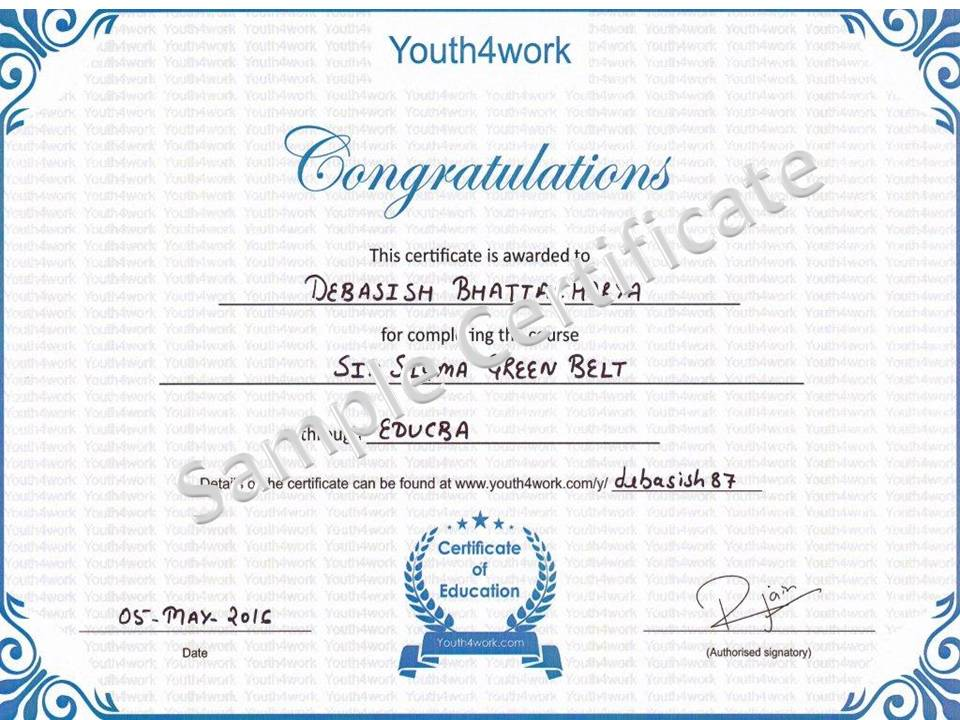
Here is a sample for the course completion certificate which you will receive after complete the course. This certificate is widely accepted across industries and will boost your chances to grab the job opportunities.
Mail us at: [email protected] with below details to receive your certificate:
- Name
- Course Name
- Date of Completion
- Address
Curriculum
Section 1: Introduction
1 OneNote Introduction
Section 2: Getting Started
2 What is One Note
3 Launching One Note
4 Understanding the interface
5 Sharing Notebook
6 Sharing Notebook- Properties
7 Creating a New Notebook
8 Adding New Sections
9 Working with Pages and Sub-pages
10 Creating a Note
Section 3: Adding Content to OneNote
11 Sending Content to One Note
12 Copy data from PDF
13 Screen Clipping
14 Adding Images
15 Adding Media Files
16 Inserting Excel Sheets
17 Adding Equations & Symbols
Section 4: Formatting Content
18 Formatting Text
19 Using Styles
20 Bullets & Numbering
21 Spell Check & Auto Correct Options
Section 5: Organizing Information
22 Customizing the Interface
23 Search Option
24 Uses of Tags
Section 6: OneNote Templates
25 Adding new Templates
26 Creating a New Template
27 Making a default template for a Section
Section 7: Formatting Changes
28 Page setup
29 Adding Graphics to Background
Section 8: Working with tables
30 Inserting a Table
31 Inserting Rows & Columns
32 Formatting the Table
33 Converting Table to Excel Spreadsheet
Section 9: Using OneNote Writing Tools
34 Using OneNote Draw Option
35 Converting Handwriting to Text
36 Changing Handwriting and Shapes
37 Ink to Math option
Section 10: Interacting with Outlook options
38 Interacting with Outlook
39 Sending Page Information by email
40 Outlook Tasks
Section 11: Sharing a Notebook
41 Saving to other Formats
42 Saving Notebook to PDF Format
43 Saving Notebook on SkyDrive
44 Inviting others
45 Creating a shared link
46 Syncing the Notebook
Section 12: Collaborating the Notebook
47 Author Indicators
48 Identifying Recent changes
49 Page Versions
Section 13: Changing OneNote Options
50 Quick access toolbar & Ribbon changes
51 Email Option changes
52 Setting up Password
53 Backup Options for Notebook